Automatic Right-Sizing Recommendations and Rules
Cloud service provider relevance: EKS, AKS, and GKE.
The Advanced Optimization tab in Ocean’s Right-Sizing feature makes it easy to manage Kubernetes workload optimization in one place. You can:
- See the current optimization status at a glance.
- Explore detailed recommendations for your workloads.
- Set up automation rules to keep everything running smoothly.
This helps you stay in control and optimize your resources without extra effort.
Before you begin, see Ocean Cluster Automatic Right-Sizing for a full description of this feature.
To view your right-sizing recommendations and rules:
- In the left main menu, click Ocean > Cloud Clusters.
- Select a cluster from the list of clusters.
- Click Right Sizing > Advanced Optimization.
This tab contains these sections:
- Workload optimization status panel.
- Workloads table with recommendations.
- Rules list.
Click to view image...
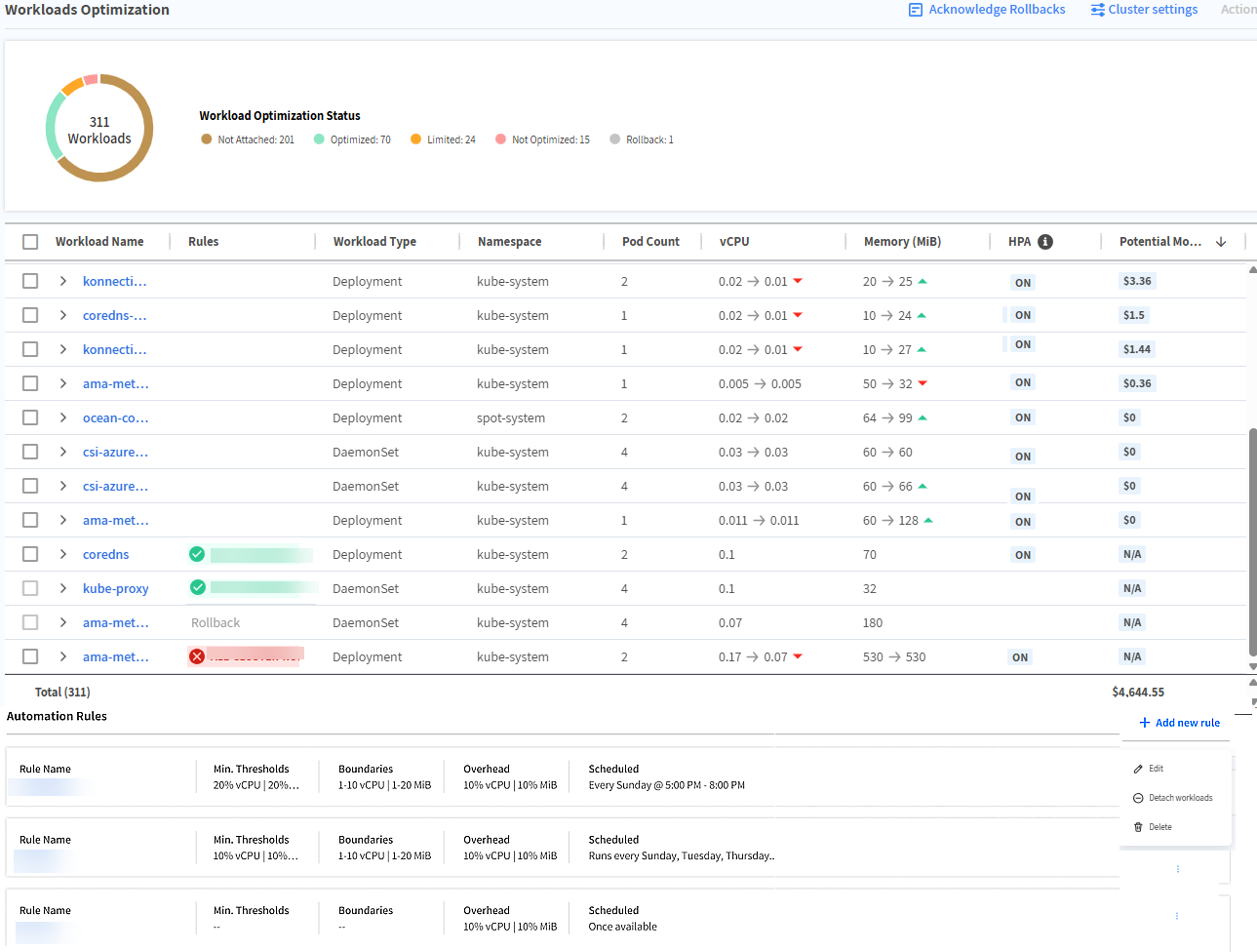
Your workload optimization activities impact the status of the workloads in the Right Sizing Savings panel.
Workload Optimization Status Panel
The table below shows the Workload optimization statuses:
| Icon | Status | Meaning | What You Should Do |
|---|---|---|---|
 | Optimized | Workload is fully optimized; no changes needed. | No action required. Monitor usage patterns periodically for changes. |
 | Limited | Recommendations applied but constrained by rules or HPA limits. See also List of Limited Status Reasons. | Review rule settings and HPA thresholds. Consider adjusting boundaries or overhead. |
 | Pending | A Rule is attached, but outside its scheduled application window. | Wait for the next scheduled interval or manually trigger optimization if urgent. |
 | Not Optimized | Workload cannot be optimized due to configuration issues (e.g., overly strict thresholds, preliminary exclusions). | Check rule thresholds and exclusions. Loosen constraints or enable preliminary recommendations if acceptable. |
 | Rollback | Ocean reverted changes due to instability (e.g., OOM events). | Review rollback details directly in the console using the Acknowledge Rollbacks button. |
 | Not Attached | No optimization rule applied to this workload. | Attach an appropriate rule or create a new one to start optimization. |
List of Limited Status Reasons
Click for more information...
This table describes the limited status reasons.
| Reason | Meaning | What You Should Do |
|---|---|---|
| Recommendation is pending due to scheduling settings of the attached rule | The optimization cannot run because the rule's schedule hasn't triggered yet. | Check the rule's schedule and confirm it aligns with your desired optimization window. |
| Recommendations were not fully applied due to overhead adding an extra layer of resources | Applying the recommendation would exceed resource overhead limits. | Review overhead settings or adjust resource limits to allow full application. |
| Recommendations were not applied due to Resource threshold(s) on attached rule | The rule has minimum/maximum resource thresholds that block changes. | Update the thresholds in the rule if they are too restrictive. |
| Recommendations were not applied because they have preliminary status | The recommendation is still being validated and isn't final. | Once the recommendation moves out of preliminary status, it will be applied automatically. |
| Recommendation was partly applied due to resource boundaries of the attached rule | Only part of the recommendation fits within the rule's resource boundaries. | Adjust boundaries or accept partial optimization. |
| Recommendation does not apply because HPA type is not supported | Horizontal Pod Autoscaler (HPA) type in use isn't compatible with optimization. | Switch to a supported HPA type or disable HPA for this workload. |
| Restart policy did not allow workload restart. Recommendations will only be applied to pods on restarts not relating to policy | The workload's restart policy prevents immediate changes. | Apply changes during a natural restart or modify the restart policy if possible. |
| Recommendation was not applied because HPA is turned off for the rule | HPA is disabled, so scaling recommendations cannot apply. | Enable HPA if scaling is required. |
| Recommendation does not fully apply due to HPA resource trigger. Only memory optimization allowed | CPU scaling is restricted by HPA triggers; only memory changes apply. | Review HPA configuration to allow CPU optimization if needed. |
| Recommendation does not fully apply due to HPA resource trigger. Only CPU optimization allowed | Memory scaling is restricted by HPA triggers; only CPU changes apply. | Adjust HPA settings to allow memory optimization if desired. |
| Recommendation does not apply due to HPA resource triggers. Neither memory nor CPU optimization are allowed | HPA configuration blocks all resource changes. | Modify HPA triggers or disable HPA for this workload. |
| Recommendation was not applied because VPA is not reporting | Vertical Pod Autoscaler (VPA) isn't providing metrics, so optimization can't proceed. | Ensure VPA is properly configured and reporting metrics. For troubleshooting, see Automatic Right-Sizing Troubleshooting. |
Workloads Table With Recommendations
This list shows your right-sizing recommendations for each workload and lets you drill down to the container level.
- Right-sizing rules that are attached to specific workloads.
- Workload optimization status (see…link to statuses table): If the workload is attached to a right-sizing rule, the rule’s name appears in the Rules column.
- vCPU and memory right-sizing recommendations per deployment.
- Green arrow: Recommended increase.
- Red arrow: Recommended decrease
- HPA Indicator: Shows “ON” if the Horizontal Pod Autoscaler is active for this workload; hover for trigger details (CPU, Memory/other).
- Potential Savings: Estimated monthly savings if the recommendations are applied.
-
When a workload is fully optimized: The Optimization table does not display recommendations for vCPU, memory, or potential monthly savings. This is because Ocean is already applying the optimal configuration for that workload.
-
When a workload is scaled down to 0 replicas: Optimization recommendations are not generated for that workload. In the Optimization table, the fields for vCPU, memory, and monthly potential savings display N/A to indicate that no recommendations are available. Drill-down details for container-level recommendations are also unavailable because the workload has no active pods. If the workload is scaled up again, new recommendations are generated based on its updated configuration. To clarify this behavior, hover over N/A in the table to see a tooltip with an explanation.
-
When
appears on the right of the screen, workloads were moved to rollback status. See Acknowledge a Workload Rollback.
-
When you see a message about VPA not reporting:
- You cannot attach rules to workloads.
- If at least one rule was previously attached to a workload, the workload is not optimized because the VPA is missing from the cluster.
- For more information, see Automatic Right-Sizing Troubleshooting.
To view a list of your potential savings and recommendations per container:
- Click on the arrow to the left of a workload to drill down to the containers. For each container, you can then view:
- vCPU request: Shows the current allocation after applying the right-sizing recommendations, usage utilization, and any suggested increases or decreases in vCPU units. If no changes are necessary, a Keep icon appears.
- Memory request: Shows the current allocation after applying the right-sizing recommendations, usage utilization, and any suggested increases or decreases in MiB units. If no changes are necessary, a Keep icon appears.
- Right-sizing Recommendations: Show the recommended changes in vCPU and memory. You can copy these changes and apply them manually later.
Rules List
This list shows your existing right-sizing rules.
Each rule entry shows relevant information about the parameters that trigger the rule and its scheduling plan.
Work with Right Sizing Rules
You can create right-sizing rules to trigger immediately after a specific set of requirements is met or at a specific time after the requirements are met.
Create or Edit a Right-Sizing Rule
To create/edit a right-sizing rule:
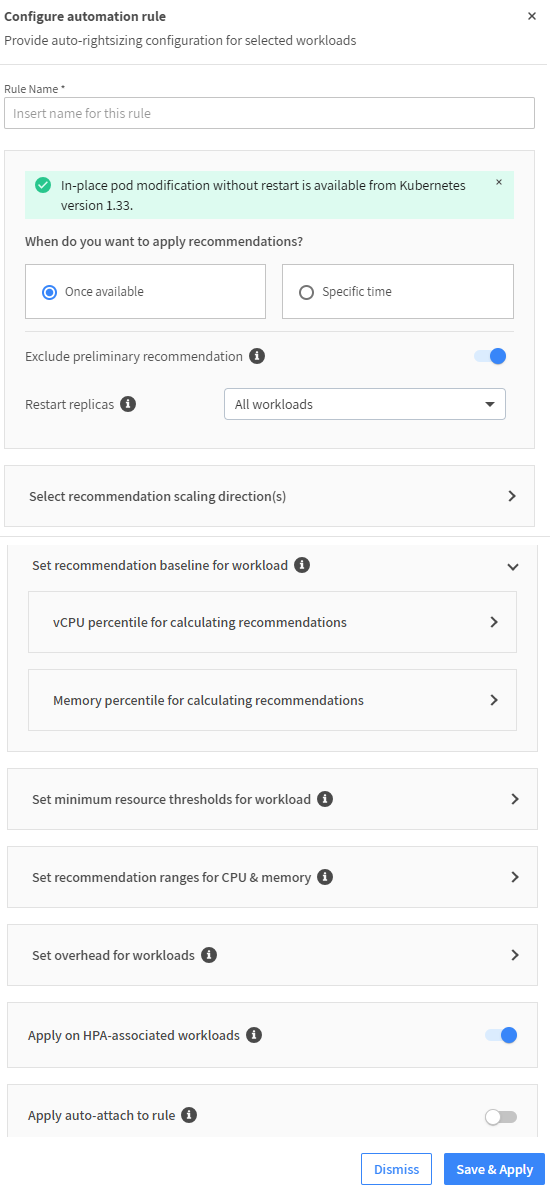
- In the Advanced Optimization tab, click + Add new rule above the rules list (or edit an existing rule).
Click to view image...
-
In Configure Automation Rule, enter a unique rule name.
-
Select when to apply the recommendation:
- Once available: The recommendation is applied immediately.
- Specific time: You select when to apply the recommendation after it becomes available.
-
Exclude preliminary recommendations: Enable this option to skip changes until the full data is collected (4 days).
-
Restart replicas: When you apply recommendations, you can select one of the following:
- All workloads: Ocean will restart all workloads attached to this rule to apply changes.
- Workloads with more than 1 replica only: Restarts occur only for those with multiple replicas, minimizing downtime.
- No restart (In-place change): Ocean attempts to apply changes without restarting pods using the in-place update mechanism.
noteIf you are running Kubernetes v1.33 or above, Ocean can usually apply recommendations in place without disruption.
- This leverages Kubernetes’ native ability to dynamically update resource requests.
- For feature limitations and edge cases, refer to the Kubernetes documentation
-
Select the recommendation scaling directions: This setting determines whether Ocean applies recommendations that increase or decrease, or only decreases CPU and memory resources:
- Decrease only: Ocean will apply recommendations that scale down resources to reduce over-provisioning and optimize costs.
- Both directions (decrease and increase): Ocean will apply recommendations for both scaling up and scaling down, ensuring workloads remain balanced between performance and cost efficiency..
-
Select the recommendation baseline for the workload: This setting defines the percentile used to calculate vCPU and memory recommendations based on historical utilization data.
- Ocean analyzes resource usage over time and applies the selected percentile to determine recommended values.
- This is how percentile affects recommendations:
- Lower percentile: Stronger recommendations (more aggressive optimization, smaller resource allocations).
- Higher percentile: Conservative recommendations (larger resource allocations for stability).
- These are the options:
- 85th percentile: (default): Balanced approach between cost savings and performance.
- 90th percentile: More conservative; suitable for production workloads.
- 95th percentile: Highly conservative; minimizes risk of under-provisioning.
- 99th percentile: (CPU) / Maximum (Memory): Maximum stability; recommended for critical workloads.
- Before you select an option, take these best practices into account:
- Production workloads: Use 90th--95th percentile for both CPU and memory.
- Critical workloads: Consider 99th percentile (CPU) or Maximum (Memory).
- Development or cost-sensitive environments: Use 85th percentile for aggressive optimization.
importantChanging the percentiles will affect any recommendations that have already been applied (this may take a few minutes to update) and will also override the values set for the cluster for this workload.
-
Set the minimum resource threshold for the workload: This setting defines the minimum percentage change from the current resource request required for Ocean to apply a recommendation. It prevents unnecessary pod restarts for trivial adjustments. This works as follows:
- If the recommendation exceeds the threshold for either CPU or memory, Ocean applies the change to both resources.
- The workload status will then be marked as Fully Optimized.
- Ocean does this because the original purpose of the threshold is to avoid unnecessary pod deletion.
- If Ocean needs to delete and relaunch a pod for one resource, it will apply the other change as well to avoid multiple restarts.
Before you select an option, take these best practices into account:
- Production workloads: Use higher thresholds (10--15%) to minimize restarts.
- Development environments: Lower thresholds (5%) for aggressive optimization
Example:
Threshold: 10%
Current CPU: 2 vCPU, recommended: 2.3 vCPU (+15%)
Current Memory: 4 GB, recommended: 4.1 GB (+2.5%)
Result: Both CPU and memory changes are applied because CPU exceeds the threshold.
-
Set the recommendation ranges for CPU & memory: Enter the upper and lower boundary values for CPU (millicpu) and memory (MiB) requests to apply a recommendation. By default, the minimum values are 10 millicpu for CPU and 32 MiB for memory. Lower values are not accepted.
- If a recommendation is above the set boundaries, automatic right-sizing will apply the recommendation using the maximum value configured in the rule.
- If a recommendation is below the set boundaries, automatic right-sizing will apply the recommendation using the minimum value configured in the rule.
-
Set the overhead for workloads: This option lets you add a percentage of extra resources to the CPU and memory recommendations. Overhead ensures workloads have a buffer beyond the optimized values for stability and performance.
Ocean applies overhead on top of the recommended resource values.
Example:
Recommended CPU: 2 vCPU
Overhead: 10%
Final CPU request: 2.2 vCPU
Use overhead to:
- Prevent performance issues during traffic spikes or unexpected load.
- Add a safety margin for workloads with unpredictable resource usage.
Before you select the overhead, take these best practices into account:
- Production workloads: Use 85-10% overhead for stability.
- Critical workloads: Consider 10-15% overhead.
- Development environments: Overhead can be minimal or zero for cost efficiency.
-
Optionally enable Apply on HPA-associated workloads: This option determines whether Ocean applies right-sizing recommendations to workloads that use a Horizontal Pod Autoscaler (HPA).
- Ocean can optimize resource requests for workloads even if HPA is enabled.
- HPA scales pods based on CPU or memory utilization, while Ocean adjusts base resource requests to ensure pods start with optimal sizing.
Ocean respects HPA constraints:
- Ocean does not override HPA min/max limits.
- Recommendations are applied within the HPA range.
- If the recommended value breaches HPA thresholds, Ocean skips the change and marks the workload as Limited.
Benefits of this option:
- Helps prevent over-provisioning for workloads with autoscaling.
- Ensures pods start with efficient resource requests, reducing unnecessary scaling events.
Before you enable this option, take these best practices into account:
- Enable this option for workloads with well-defined, stable HPA limits.
- Review HPA min/max settings before applying recommendations to avoid conflicts.
-
Optionally enable Apply Auto-attach to rule to have Ocean automatically attach the rule to workloads that match the selected criteria.
When you enable this option, Ocean scans workloads and applies the rule based on:
- Namespace
- Labels
- Workload type
Apply Auto-attach to rule eliminates the need for manual attachment and ensures consistent optimization across similar workloads.
Benefits of this option:
- Saves time by automating rule application.
- Reduces the risk of missing workloads that should be optimized.
- Ensures new workloads matching the criteria are automatically optimized.
Before you enable this option, take these best practices into account:
- Use auto-attach for namespaces or labels that group workloads with similar resource profiles.
- Avoid enabling auto-attach for critical workloads unless rules are thoroughly tested.
After enabling, in the Auto-attach area, select the required namespaces and/or labels.
The saved rule appears in the area under the Workloads Optimization list.
- Default values for Overhead and Automation Threshold are 10% and 5% respectively.
- The 10% default overhead is calculated within the recommendation.
- Threshold value is only used for down-sizing cases.
Attach a Right-Sizing Rule to One or More Workloads
Options:
Auto-attach
Enable auto-attach and let Ocean automatically attach rules to workloads based on selected criteria. See Create or Edit a Right-Sizing Rule.
Auto-attach attaches rules to existing and newly-added workloads.
Manual attach
To manually attach a rule:
-
Select one or more workloads in the Workloads Optimization list.
-
From Actions, click Attach Rule.
-
You can either attach an existing or new rule you create from scratch (a new rule will be attached to the workload(s) you selected earlier):
- Click Select from existing rule and then select a rule.
- Click Create new rule from scratch (see Create or Edit a Right-sizing Rule).
-
Save and apply the rule.
Detach a Right-Sizing Rule from One or More Workloads
To detach a rule from one or more workloads:
- Select workloads in the Workloads Optimization list.
- From the Actions drop-down menu above the list, click Detach Rule.
For Kubernetes issues, detach workloads from rules and roll them in your cluster.
Delete a Right-Sizing Rule
To delete a right-sizing rule:
- To the right of the row for the rule in the list, click the wastebasket icon.
- When the confirmation message appears, click Delete, or Cancel (if you are unsure).
You cannot restore a deleted right-sizing rule. You cannot delete a rule that is attached to a workload.
Acknowledge a Workload Rollback
If a workload triggers an Out of Memory (OOM) error, Ocean automatically:
- Rolls back the workload to its original resource requests.
- Suspends the attachment of the workload to the optimization rule.
- Marks the workload with Rollback status.
When at least one workload is in rollback status, the button appears at the top-right of the screen.
To acknowledge a workload rollback:
-
Click Acknowledge Rollbacks to review all the workloads with the rollback status.
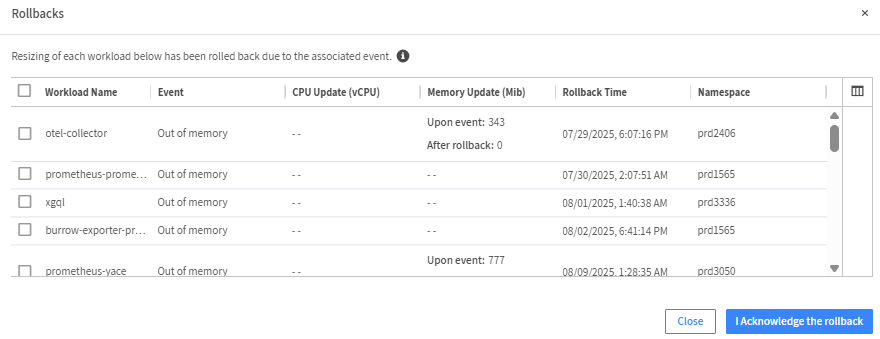
The rollback list includes:
- Workload Name.
- Event. For example, out of memory.
- CPU Update in vCPUs
- Memory Update in MiB
- Rollback Time: In format MM/DD/YYYY HH:MM: SS AM/PM.
- Namespace.
-
Investigate the cause of the OOM error:
- Check if the workload was under-provisioned.
- Review resource usage and adjust thresholds or percentiles if needed.
-
Acknowledge the rollbacks. Select the checkboxes for the required workloads.
- Click I Acknowledge the Rollback. The workloads appear in the Workloads Optimization List without any attached rules.
-
Re-enable optimization: After acknowledgment, you can re-attach the rule or resume auto-apply.
importantOnly attach a rule to a rolled-back workload after fixing the issue.
Set the vCPU and Memory Percentiles at Cluster Level
These are the global percentile settings at the cluster level and apply to all workloads in the cluster.
Any percentile change you make for a specific workload in a right-sizing rule overrides the setting at cluster level.
To change the settings:
-
Click Cluster Settings above the workloads optimization list.
-
Click vCPU or Memory as required (vCPU is shown in the example).
-
Change the values and save.
Best Practices
These are the Right-Sizing Best Practices:
- Workload limits should not have the same values as requests.
- If you set overheads for resources, start with a relatively high overhead (20%) and decrease it with time.
- If you set boundaries (recommendation ranges for resources), avoid applying the same rule to all workloads. All services have different purposes.